Choosing the Heat Transfer that is right for your application will depend on many factors. What type of equipment do you currently own? How quickly can my customers get their finished goods? How much will the equipment, material or service cost me? To decide which option is your best, you have to ask yourself these questions.
Transfer Required:
Create Names & Numbers for Sports Uniforms
Options:
Vinyl Cutter & Heat Press
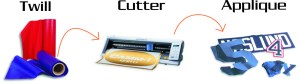
- Creating your own Names & Numbers with a vinyl cutter is as simple as adding a Heat Applied Material such as the Spectra Eco-Film.
Advantage – Owning your own vinyl cutter gives you the most flexibility and is less expensive in the long run. You will have the ability to create on demand with sufficient stock. Roster additions can be made same day. Choosing the correct vinyl cutter will also open you up into different markets, including signs, applique and pre-printed transfers.
Disadvantage– Investing in a vinyl cutter can be expensive for some. A start-up business would be well served by making the initial investment but the money isn’t always there. Pricing will range from $1000 – $7995 for the most common cutters purchased. Choosing a model like the Roland GX-24 will get you into all the markets mentioned above for under $2000.
When cutting your own, you also are responsible for weeding. Weeding is simply the process of pulling away excess vinyl from the carrier before applying to your garment. The options listed below will usually come ready to apply, no weeding required.
Order Pre-Cuts – Ordering pre-cuts is the most inexpensive way to get started with athletic lettering. A Heat Press is still required.
Pre-Cuts are typically ordered two ways
- Pre-Spaced Player Names – Pre-Spaced Player Names are ordered custom. Input your roster of players, including numbers if applicable, and the names will be sent to you ready to apply. Pre-Spaced Player Names and/or Numbers can be ordered from Stahls ID Direct and ship out within a few days.
Advantage– Low start-up cost. Names come ready to apply and no additional work (weeding) is required. Ordering pre-cuts can be beneficial as an outsourcing option. If you are very busy with other projects you can have someone else do some work for you at a reasonable price.
Disadvantage– Higher price per name and/or number vs. cutting your own. Turn time and lack of control over your project also has to be considered.
- Die-Cut Letters – Die-Cut letters and numbers is how the lettering industry got it’s start. Before Vinyl Cutters came about, Dies where used to cut vinyl one letter at a time. Today, Die-Cuts are still a viable option and at a much higher production. Die-Cuts are also available from Stahls.
Advantage – Just like Pre-Spaced Player Names, low start-up cost, ready to apply and an outsourcing option. Pricing is a bit lower, much closer to cutting your own.
Disadvantage– You’re still lacking control and turn time. Die-Cuts can be stocked but having all the letters, numbers, colors, etc available isn’t always going to happen. Die-Cuts also have to be spaced out. There are tools available to help you accomplish this but it is more time consuming compared to the Pre-Spaced or Cut Your Own options mentioned above.
Summary:
All of these options are viable. If you take the time to answer the questions I posed in the opening and consider the features, advantages and disadvantages, you should be able to determine the transfer that is right for you. If you are a start-up or expanding business without the funds to invest in a Vinyl Cutter, Pre-Cuts will still allow you to create the transfers that your customers require. It is an excellent way to test and build your market. When the time comes, adding the cutter will give you better flexibility, cost savings and expand your offering. I will always recommend cutting your own but each situation is different. If it is feasible, start out right and offer everything that you can to your customers. Keep in mind, if you can’t offer it, odds are someone else can.

 Heat Press Ed. 101